
Reporting an Issue (Advanced)
Reporting an Issue
Getting in touch with our Support team if you need to report an issue is straightforward. Let us know what you're experiencing either by email to [email protected] or through our chat feature at the Regrid homepage. The fastest way to get a potential issue resolved is to provide as much of the following information as you can:
- Project name (if you are working in a project)
- Steps you took immediately before the problem occurred, with as much detail as possible
- Does it appear to be a one-off, or can you replicate it if you try the same steps again?
- Screen recording (preferred) or screenshots showing the problem (see section below).
From there our team will look into the problem, try to replicate the issue, and ask any followup questions needed. The majority of the time, this will be enough for us to go on.
Taking Screenshots & Screen Recordings
Capturing screen recordings
Screen recordings are by far our favorite way for you to show us the issue you're encountering. It saves both us and you time in getting to the bottom of the issue! We tend to recommend Loom for screen recordings because it's straightforward and free, but there are many services out there that work equally well. Choose whatever is easiest for you.
Now, start running through whatever steps you took to trigger the issue you're having. For example, if your issue was that the FEMA Flood Layer isn't showing on the map for you, you would clear the network log, then open the Layers option in the bottom right, then click on the FEMA layer.
Taking Screenshots
Screenshots are also super helpful. They let us see exactly what you’re seeing, which makes it much easier to troubleshoot.
Using the Inspect Tool
In some rare cases, the problem you experience for some reason can't be replicated on our team's end. In those cases, we need more information from you to see what you're seeing.
In these cases what we need is a look at what's going on with your specific circumstances/device. The easiest way for you to show us these details is a screen recording while you re-create the issue while having the 'Inspect' tool of your browser open. This is so that we can see more details about how the site is loading and performing, and look for clues.
First, open Regrid's left hand toolbar. Then right-click in the blank space at the bottom of the toolbar. You should see a menu of options open up, and one of them should be 'Inspect'. Click this.
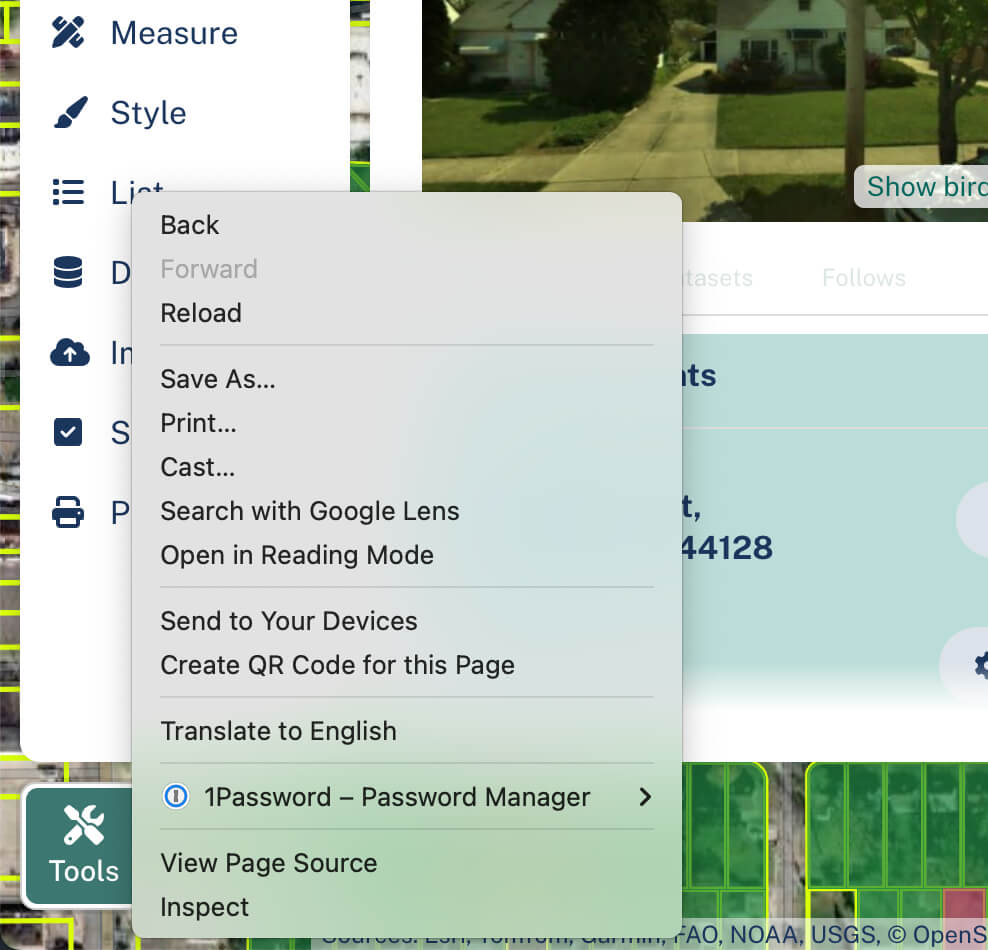
After clicking, you should see a pane open up - this is the Inspect tab. At the very top of the Inspect pane, look for the 'Network' option. Click on it - this is the most helpful single tab for you to show us.
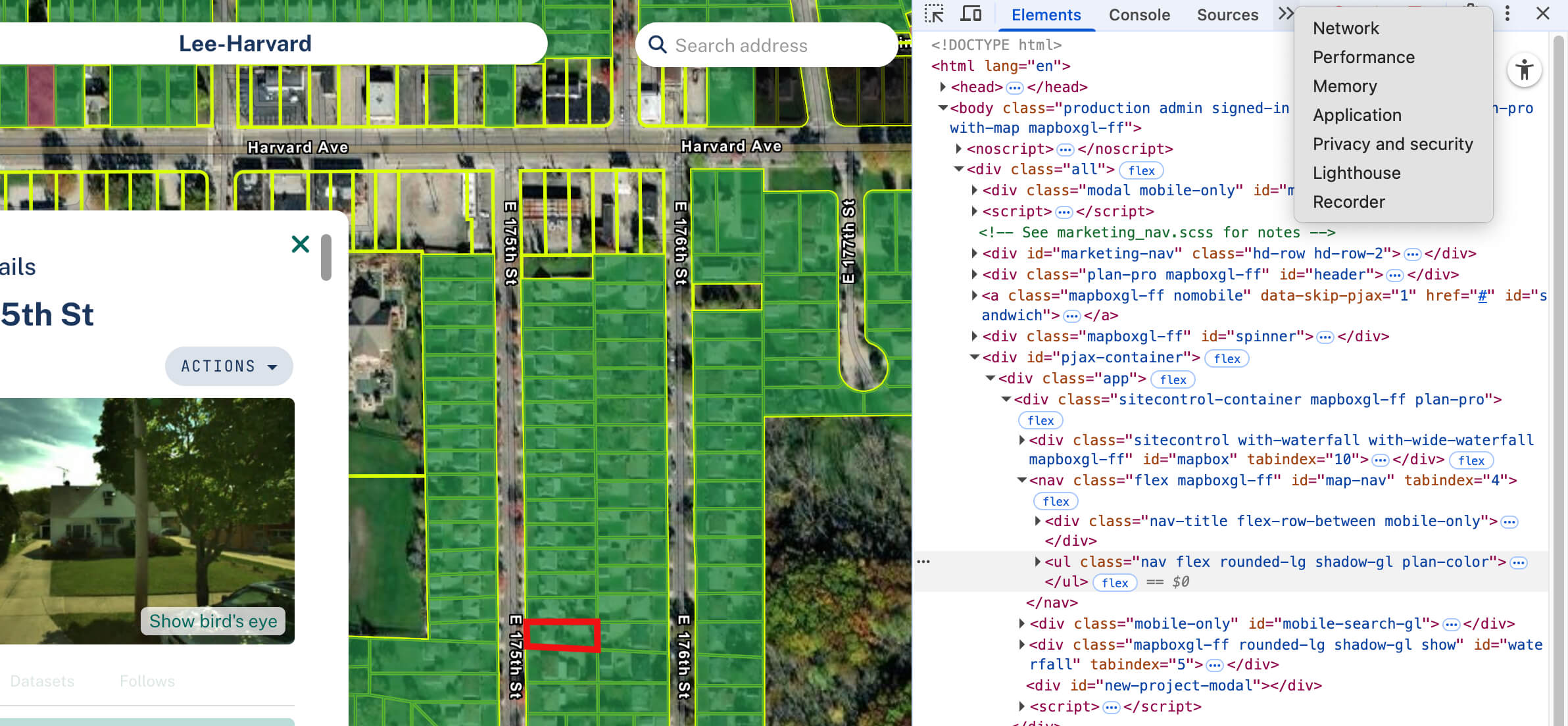
All right, now you have the Inspect tab open and the Network option selected. It should look something like the screenshot below.
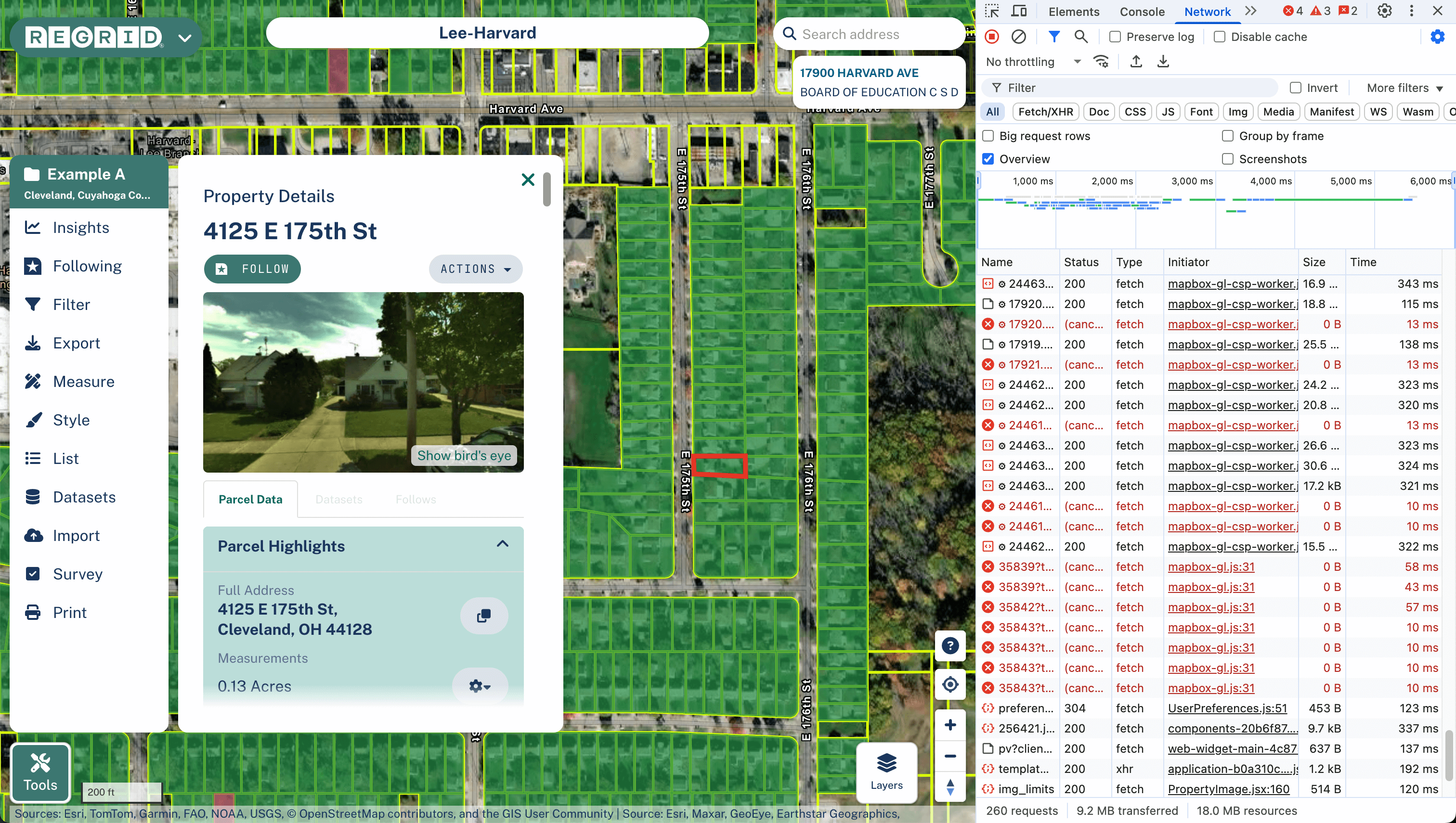
From here, click the 'Clear Network Log' button (up toward the top left of the Inspect pane - icon is a grey circle with a diagonal line through it).
At this point you're ready to start documenting the issue. If you are able to record your screen (preferred), this is the ideal time to start recording.
Now, start running through whatever steps you took to trigger the issue you're having. For example, if your issue was that the FEMA Flood Layer isn't showing on the map for you, you would clear the network log, then open the Layers option in the bottom right, then click on the FEMA layer. Stop recording when you have finished documenting the behavior that is the issue.
That's it - you're done! From here, simply add the video or photos that you have taken to your conversation with our Support team and we will gratefully take a look.
Reporting App Errors
Reporting an Issue - Standard Recommendation
For almost any issue that you encounter in the mobile app, we recommend using our "Feedback" option. This passes along the relevant information that we need automatically - you can skip all the "Manual" steps listed below, and simply do the following:
Open the Regrid app
Tap the menu button (top left)
Tap "Help"
Tap "Feedback"
Enter your feedback into the box, select "Yes" if you'd like our team to respond to you directly, and submit!
Android App Errors
Rare Cases - Manually Report Android Device/User Info
In some cases (for example, if the app is repeatedly crashing on login, or you otherwise are unable to navigate to the feedback form) we may ask you to manually pass along some information about yourself and your device so that we can troubleshoot.
- The email you use to login to the Regrid App
We use this to be able to inspect our logs and track down more info about your issue. - The exact Date + Time the error last occurred.
This also helps us find you in our logs. If you don't know the last date and time, but are able trigger the error again, you can retrigger the error and send us that date and time.
Example: 7/22 4:52pm - Android Version Number
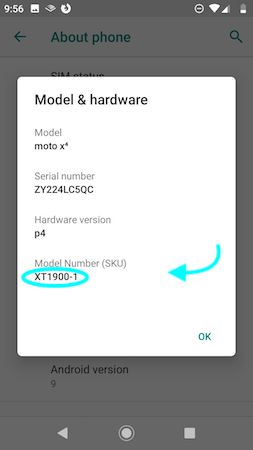
Example: Android 9 - Model Number
Example: XT1900-1 - Regrid App Version Number
Example: 1.14
Send your bug report to: [email protected]
The Model Number will never change, so you'll only need to get it once if you can associate it with a single Surveyor or device.
The Android Version will change occasionally.
The Date+Time and Regrid Version Number is needed for every bug.
Below is the process for getting the Android Version Number, the Model Number, and the Regrid App Version Number.
Get Android Version + Model Number
- Click on the Settings Icon
-
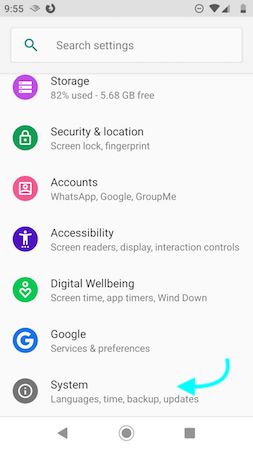
- Click System at the bottom of the Settings Panel.
-
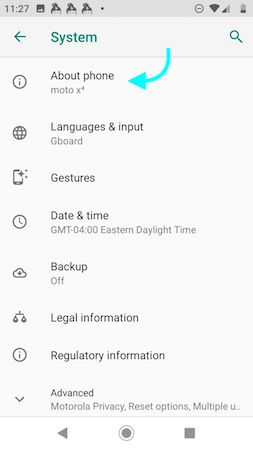
- Click About Phone
-
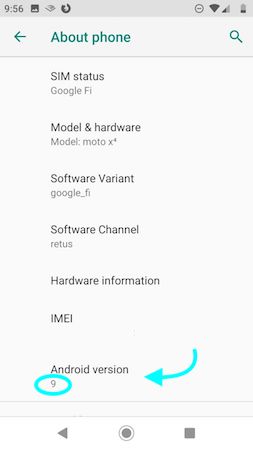
- Write down the Version Number
-
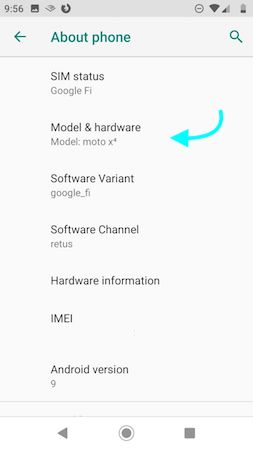
- Click Model & Hardware which is also on on the About Phone screen.
-
- Write down the Model Number
-
Get Regrid App Version
Open the Regrid App and Log in.
Navigate to Profile
Write down the Regrid Version Number at the bottom of the screen. Example: 1.15.0
Submit Your Bug
Here's a template you can use to submit your bug.
What Happened:
Exact Date and Time:
Android Version Number:
Model Number:
Regrid App Version Number:
Email used for Logging In to App:
If Post Has Not Successfully Uploaded
What is the status of the post?
You can find this in the Posts section of the app.
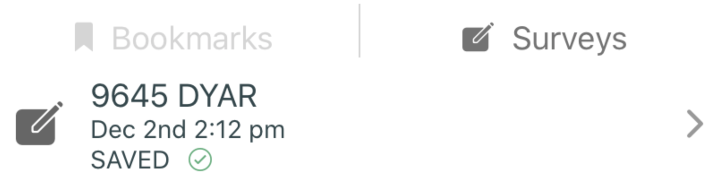
Options:
- submitting
- unsaved
- temporary fail
- error
IOS App Errors
Rare Cases - Manually Report IOS Device/User Info
In some cases (for example, if the app is repeatedly crashing on login, or you otherwise are unable to navigate to the feedback form) we may ask you to manually pass along some information about yourself and your device so that we can troubleshoot.
- The email you use to login to the Regrid App
We use this to be able to inspect our logs and track down more info about your issue. - The exact Date + Time the error last occurred.
This also helps us find you in our logs. If you don't know the last date and time, but are able trigger the error again, you can retrigger the error and send us that date and time.- Example: 7/22 4:52pm
- iPhone Version Number
- Example: 12.1
- Model Number
- Example: A1901
- Regrid App Version Number
- Example: 1.14
Send your bug report to: [email protected]
The Model Number will never change, so you'll only need to get it once if you can associate it with a single Surveyor or device.
The iPhone Version will change occasionally.
The Date+Time and Regrid Version Number is needed for every bug.
Below is the process for getting the iPhone Version Number, the Model Number, wnd the Regrid App Version Number.
Get iPhone/iOS Version + Model Number
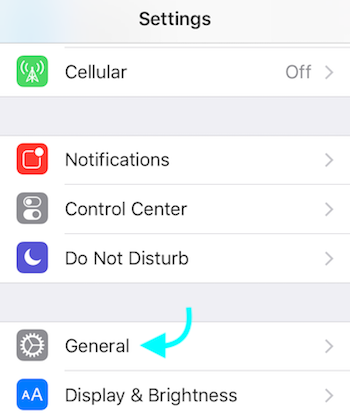
- Click on the Settings Icon
-
- Click General.
-
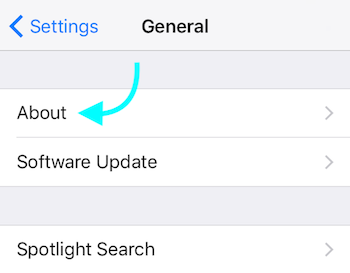
- Click About
-
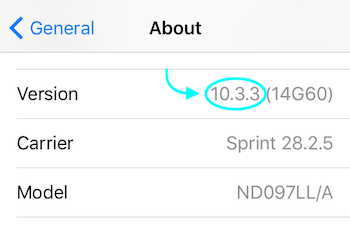
- Write down the Version Number
-
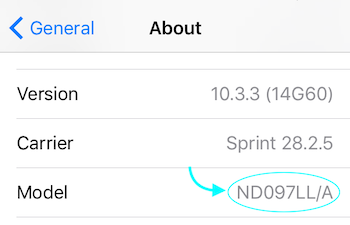
- Write down the Model Number
-

Get Regrid App Version
- Open the Regrid App and Log in.
- Navigate to Profile
- Write down the Regrid Version Number at the bottom of the screen. Example: 1.15.0
Submit Your Bug
Here's a template you can use to submit your bug.
What Happened:
Date and Time:
iPhone Version Number:
iPhone Model Number:
Regrid App Version Number:
Email used for Logging In to App:
If Post Has Not Successfully Uploaded
What is the status of the post?
You can find this in the Posts section of the app.
Options:
- submitting
- unsaved
- temporary fail
- error
Updated 6 months ago