
Changing User and Account Info
Change user name, password, or associated email
(note: this guide assumes you're already signed in. If you need help signing in, go to the Regrid Property App landing page and follow the 'forgot password' instructions.)
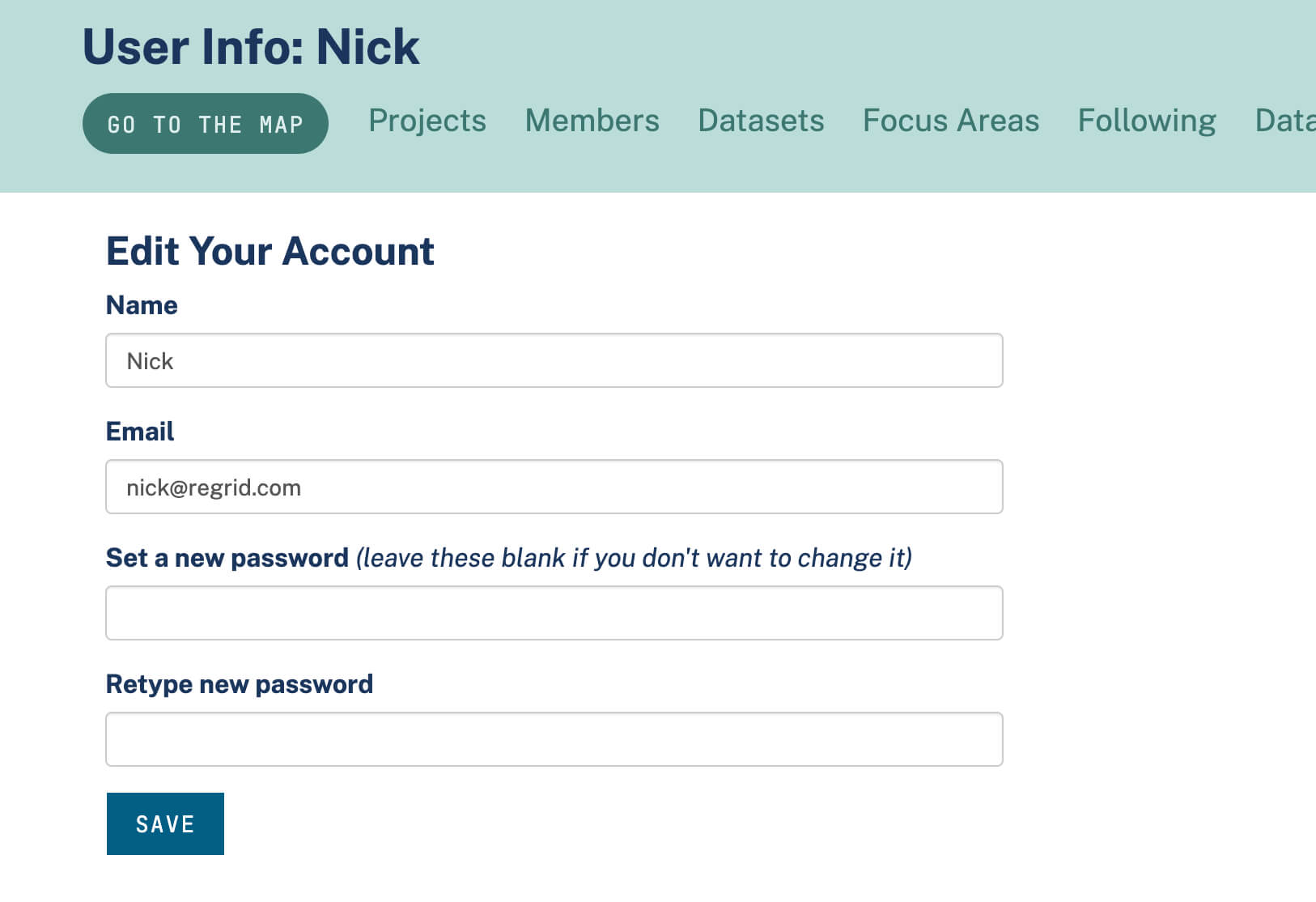
From within your account, you can access and edit your username, password, and associated email address whenever you like. To do so, first click the Regrid logo up at the top left, then "Edit User Info".
This will take you to a page where you can update any of your user information, then click 'Save' to finalize.
Privacy Settings
By default, regrid.com Projects are only accessible by members of your regrid.com account. If you would like a map to be publicly accessible by anyone with the map's URL, please refer to our "Share Your Project" entry.
Changing the name or URL of your account
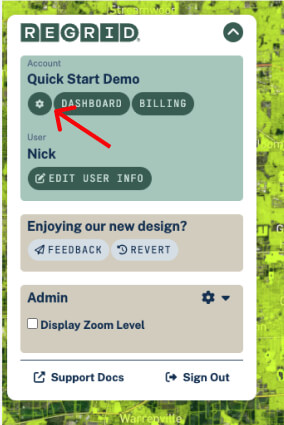
You can change the name of your Regrid account any time you want. Open the Regrid menu (top left), then click on the gear icon. From the resulting page, you can change your group's name, and also update your account's custom url (for example, to make it shorter and easier to type). Click 'Save Settings' when you're done to make your changes permanent.
You can watch a video illustrating how to change this information below.
Add or Remove Users
This feature is only available with a paid account of Team or higher. Click here to upgrade your account.
If you signed up for a Team account, you will have chosen the number of collaborators (users) you want in your group (you can always adjust this number up or down from your Billing page); if you are a Pro user and want to add other users to your account, simply go to the Billing page to upgrade to Team.
Invite a user in to your account
- Go to your Dashboard (if you're on the map, go to the top left Regrid dropdown and click "Dashboard"). Navigate to "Members" tab.
- Click the "Invite a Member" button on the top right hand side of the page (See "User Permissions" section below for details on various permissions levels).
Remove a user from your account
Simply click the 'remove' icon under Actions, located to the right of each collaborator's name on the Members page

User Permissions
When you add collaborators, you can also customize the permissions levels of those you are inviting. To change permissions, click on the dropdown menu of your group (top left of the page) and choose “Members”. This will bring you to a list of current group members and their permission levels. To change the permission level of a member, simply click their role (ie “Manager”). This will bring up a dropdown list from which you can choose. You can change permissions settings at any time.
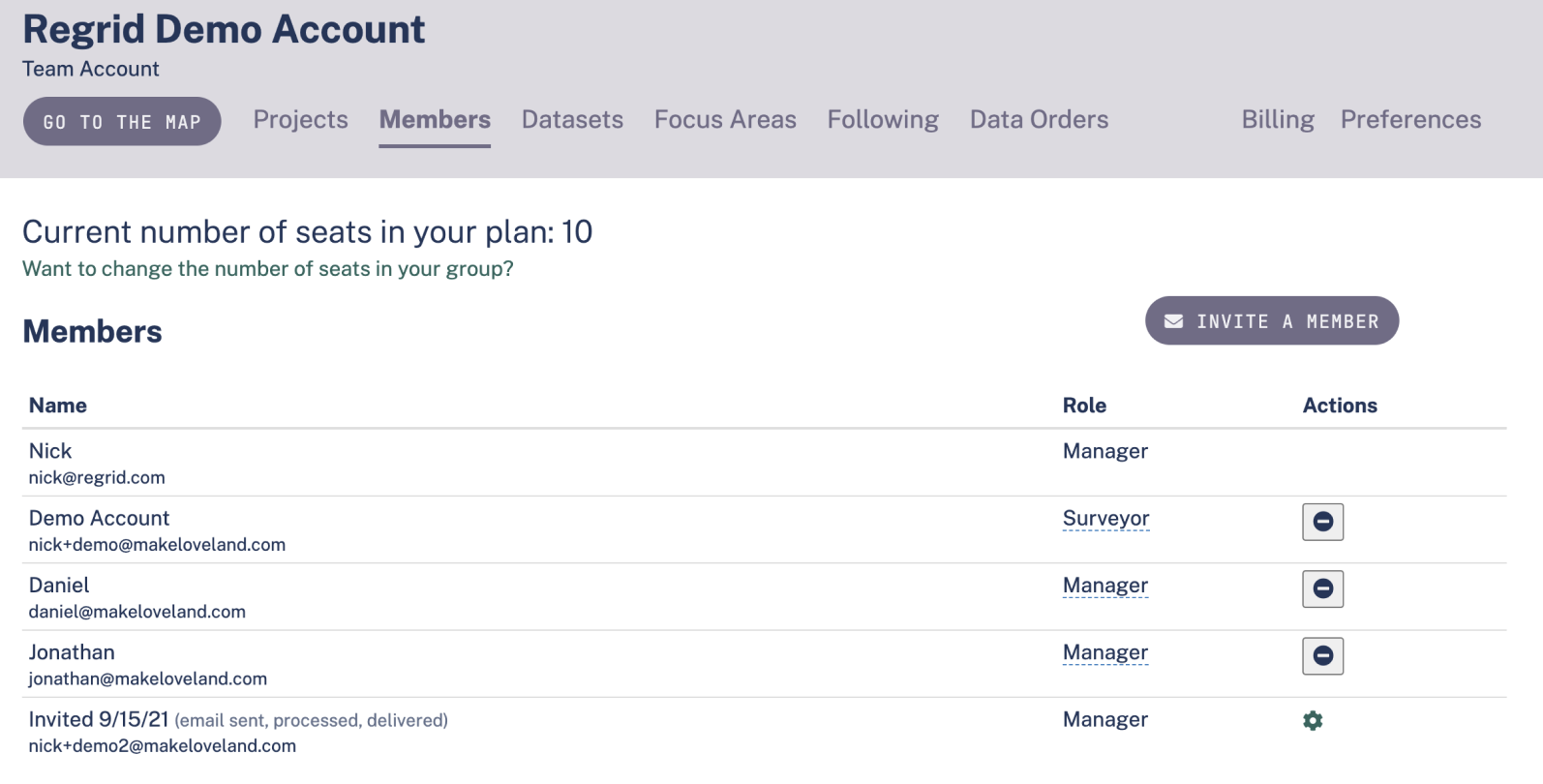
Here are the definitions of the various permissions levels:
Manager
Choose this level if you want the user to have full access to everything in the account. Full permission to edit data, create and delete projects, and survey properties. Full access to the account, including updating billing. You can have multiple managers.
Member
Members can see all projects and all data in a Regrid account. They can: survey properties, edit (QC) survey responses, draw focus areas, upload datasets from spreadsheets, and export datasets. However, they cannot: create, modify, or delete projects; add or remove users in the account; or change billing and other account settings.
Surveyor
When you invite someone as a Surveyor, it ONLY allows them to contribute to a Regrid account by surveying properties with the Regrid App on a mobile device. This is ideal if you have a hired workforce of surveyors who you want collecting property data in the field, but not modifying data once it’s in your regrid.com account.
Billing Contact
If you’d like to pass the payment reins to someone else in your account, you can set them as the “Billing Contact.” This will give them access to change payment settings.
Add/Remove User tutorial video
Updated 7 months ago