
Customizing Property Details
Highlight and hide/show fields in your property details view.
Property App users with paid subscriptions can customize what fields are shown in their property details. Begin by clicking Actions > Customize View.
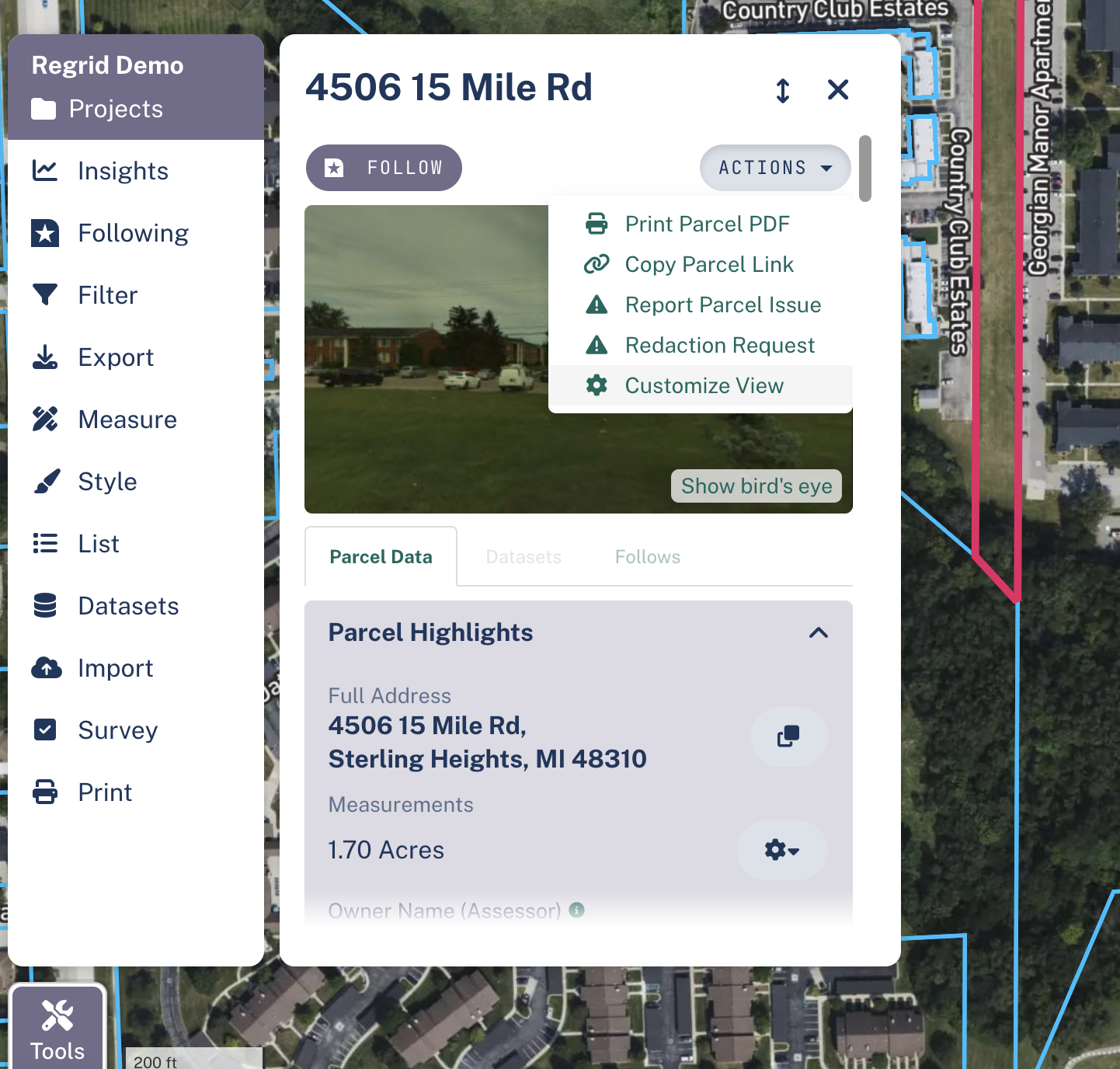
Setup & General Nav for Customize View
Setup & General Nav for Customize View
Once you're in the customize view, you'll see two columns. The left hand column is the info for the property that you clicked initially. This will update in real time as you hide/show/highlight fields in the right hand column.
Any customization you make will apply to your view of any future property - ie if you add a field to highlights section, it'll show for any property you subsequently click on which has data for that field. You can change these settings at any time.
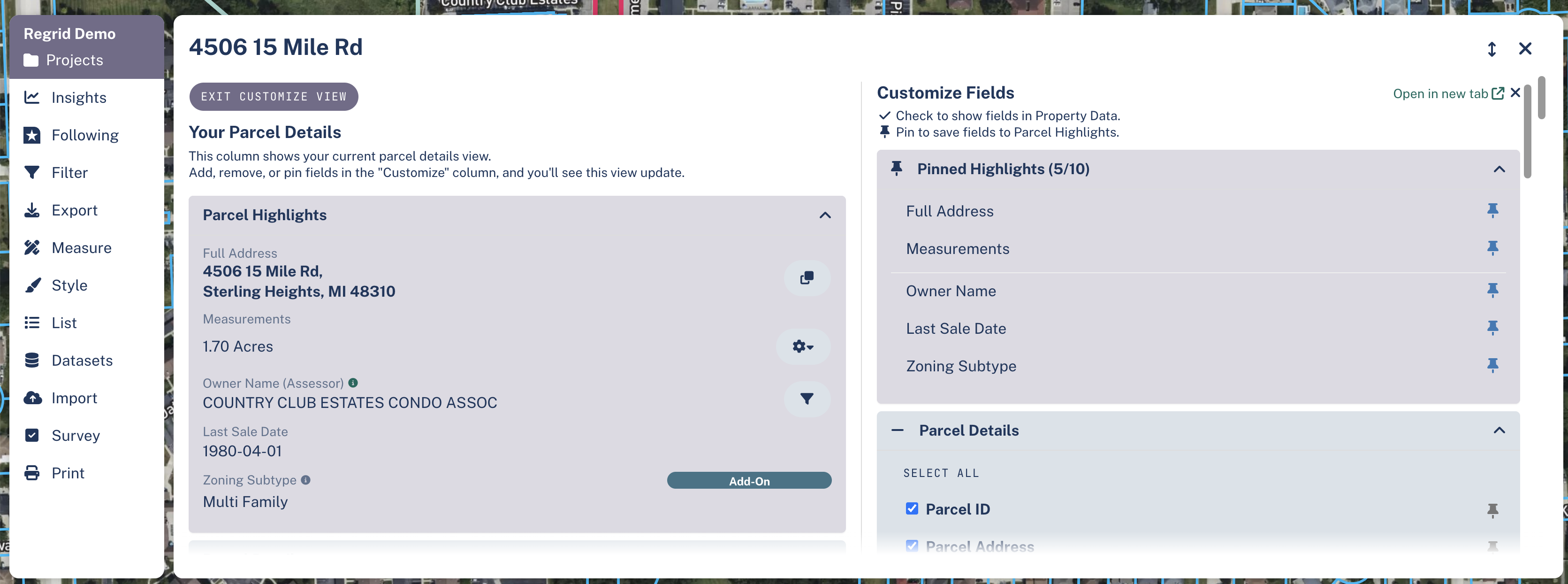
Highlight Fields
Click the 'thumbtack' icon on the right hand column to pin a field to your Highlights section up top. Clicking it again will un-pin it from your Highlights section.
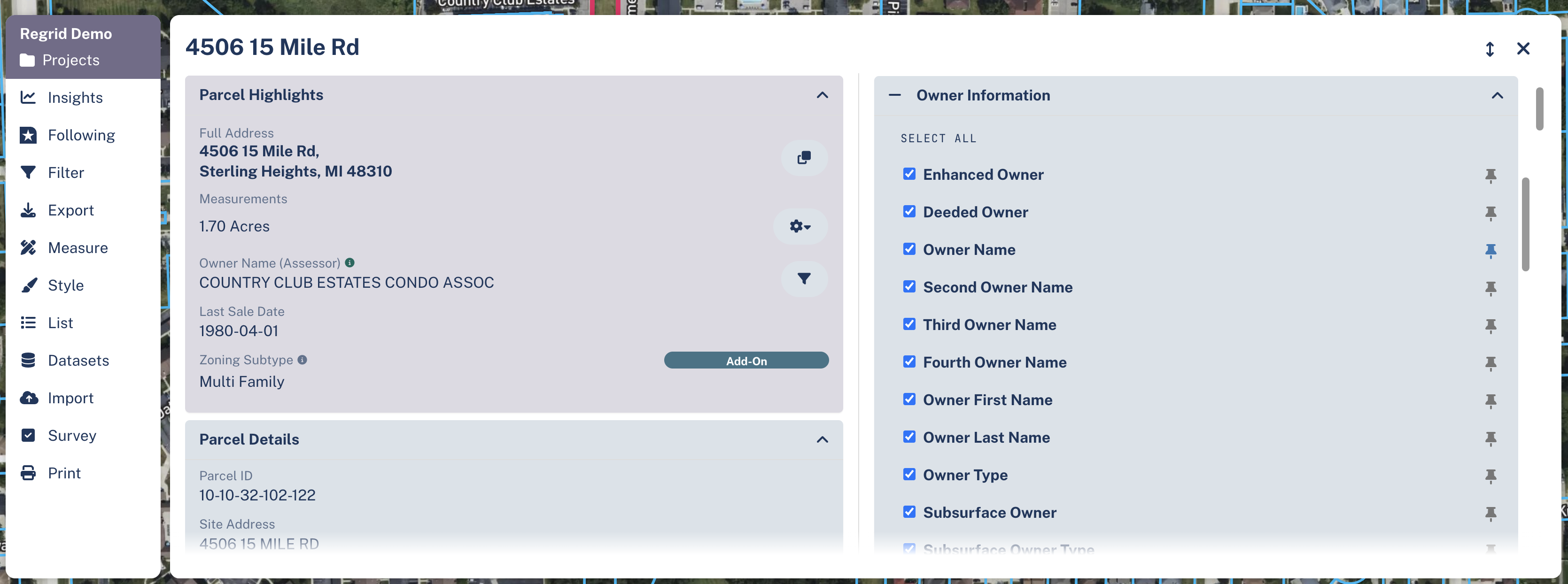
Hide/Show Fields
To hide fields in your property details view, uncheck the box to the left of the field name in the left hand column.
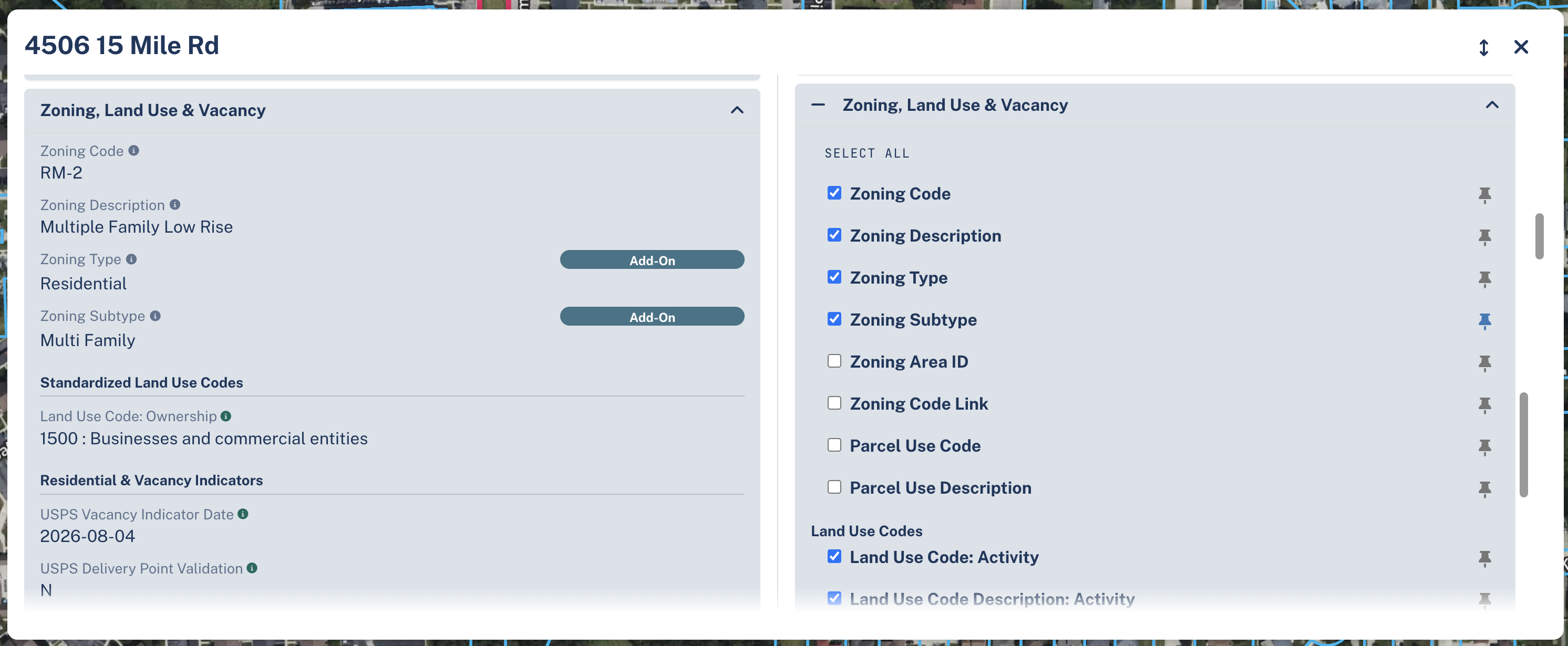
To show fields that have been hidden, simply re-check the box.
Updated 2 months ago