
Using the Survey Tool
Survey Tool: Collect Your Own Data
Regrid users with Pro or Team accounts can create custom surveys and go into their cities and neighborhoods equipped with the Regrid Property App to take pictures and answer questions about property. The data and photography collected is attached to the parcels surveyed and saved privately in your regrid.com account, where you can use it to build maps and make decisions supported by the latest information collected on the ground.
The advantage to setting up a survey, as opposed to eg just Following properties and adding notes/photos, is that the data is standardized. This is important if you are collecting data that you want to analyze later (for example, to use Filter to answer a question like "how many properties need new roofs in X neighborhood?"). Structuring the data collection process via a survey is also more helpful in cases where a team of multiple people is going out to collect specific data, and you want everyone to have the same questions being asked for data collection. Finally, surveys are much more scalable than Follows, so if you are doing a large-scale data collection campaign, you'll want to use a Survey.
Here’s how to get started with your very own property survey:
Step 1:
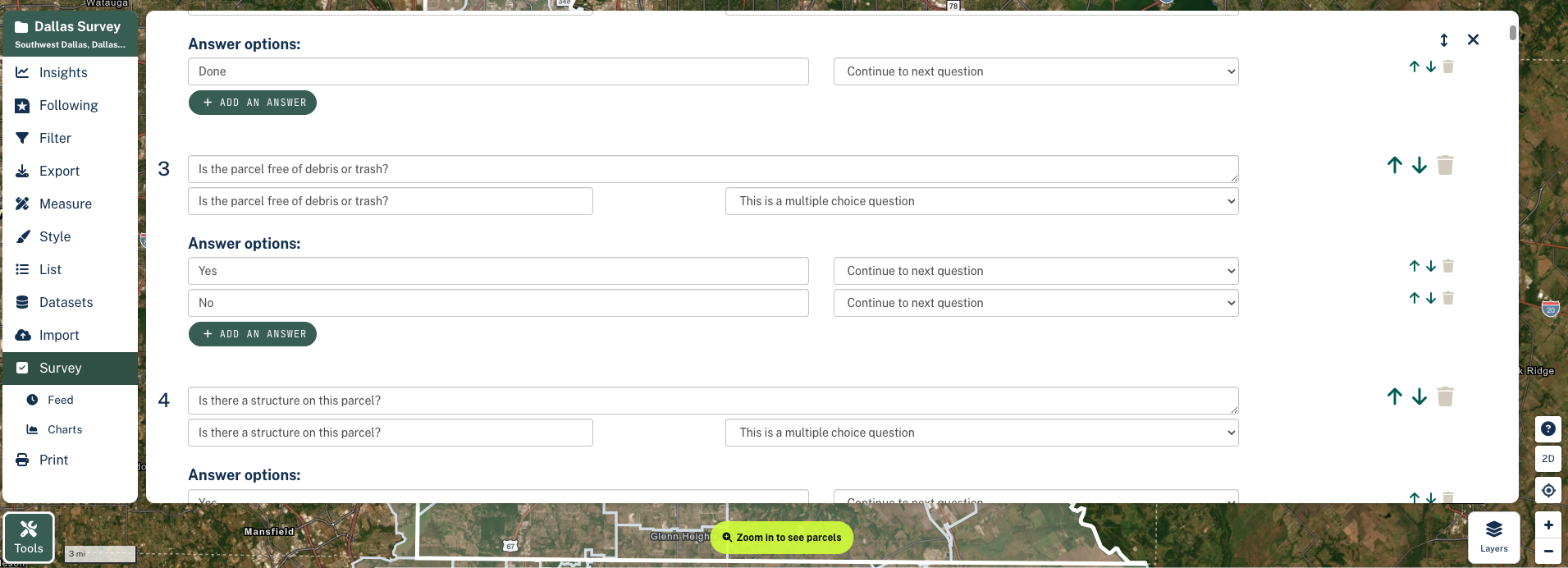
Navigate to the website app.regrid.com and choose the project you’d like to start your survey in. Once in the Project, click on “Survey” and then “Editor” in the sidebar to start building your survey. You can also choose a premade survey if you prefer, under the "More Actions & Presets" dropdown.
Step 2:
Use the survey editor to create your questions and set up the logic. A quick video tutorial on question setup can be found here.
Step 3:
If you haven’t already, now’s the time to download the Regrid Property App on your surveying device. A smart phone, tablet, etc will work. The Regrid App is available for iOS and Android devices on the App Store and the Google Play Store, respectively.
Step 4:
When you’re ready to start surveying property, open up the Regrid Property App on your smartphone and log in using your Regrid credentials. This will be the same login info that you used to log in to app.regrid.com in Step 1.
Step 5:
Tap the menu icon up in the top left of the screen. Tap the ‘survey mode’ toggle to turn on Surveyor Mode, then choose the project that you’d like to survey in.
Step 6:
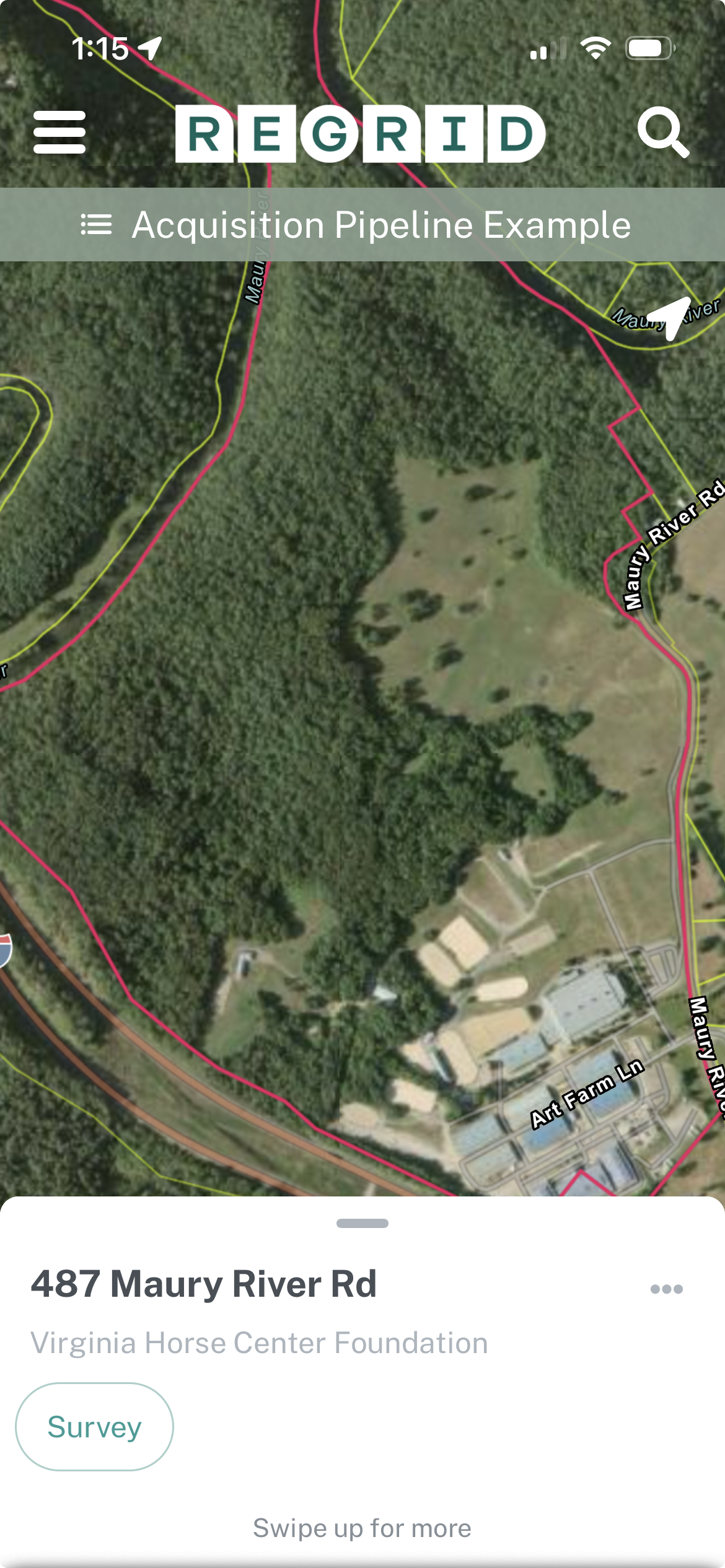
To collect data, tap the outline of the parcel you want to survey. The outline of the parcel you’ve selected will highlight, and its preview information will appear at the bottom of the screen. Swipe the preview information up to display more info about the property, if needed. When you’re ready to survey, tap the “Survey” button.
Step 7:
Answer your survey questions by tapping the appropriate option(s) for the property you’re surveying.
Step 8:
When you’ve reached the end of your survey questions, you’ll see two buttons: “Submit” or “Add Another Photo”. If you’d like to add additional photos, tap “Add Another Photo” to keep taking pictures. When you’re ready to send your survey and its data and photography, tap “Submit”. You’re done! You can check on the submission status of your posts in the Posts tab, found in the bottom right toolbar on the app.
Step 9:
Back on a computer (ie app.regrid.com), you can navigate in the Project to the region you were surveying and click any highlighted parcel (denoting properties you’ve surveyed) to see the imagery and data. Or, you can click the “Feed” icon on the sidebar to see a chronological stream of all the information you’ve collected in the project.
Note: Once a property has an associated survey with it, a viewer on the desktop site is provided with a variety of quality control options. This gives you the option to approve or flag individual posts, if you’re working on a large survey and verifying survey data as it comes in.
Live Feed of Submitted Data
The Feed tab in a Regrid project keeps track of all the survey post activity in your account in real time. When you import data or survey properties, all the information will populate in your Feed, live.
The Feed behaves like all other data in Regrid regarding boundaries - ie if you select a neighborhood, for example, the Feed will reflect only the activity for properties in that area.
You can click any address in the Feed to see details of that property or surve
Surveying Tutorial Video
Updated 5 months ago